How to Download Instagram Reels on iPhone (2026)
Why iPhones Cannot Save Reels Natively
Instagram's iOS app does not include a built-in save option for Reels from other accounts. The only official alternative is to share a Reel to your own Story, but that does not create a local video file. To actually save the video to your Camera Roll, you need an external tool.
Download Reels on iPhone with ReelHQ
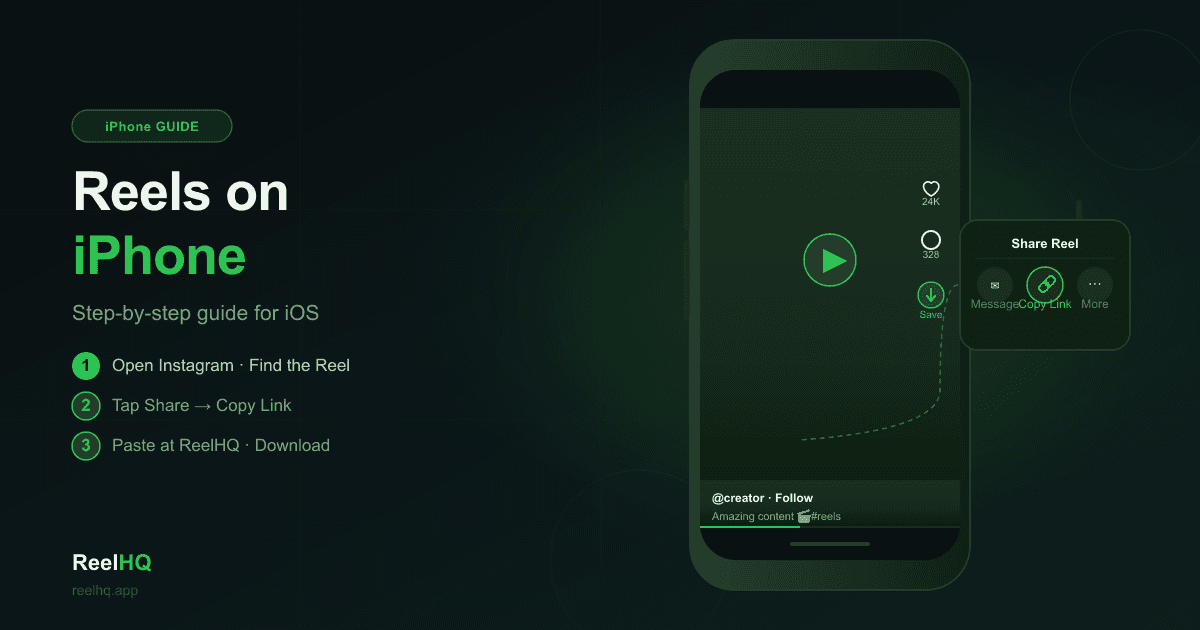
ReelHQ works directly in Safari — no app download or sign-up needed. 1. In Instagram, open the Reel you want to save. Tap the Share icon (three dots) → Copy link. 2. Open Safari and go to ReelHQ.app. 3. Paste the link into the field and tap Download. 4. When the video loads in your browser, tap and hold it → Save to Photos. The video saves to your Camera Roll at its original quality.
Tips for the Best Experience on iOS
Use Safari rather than Chrome or Firefox for the best "Save to Photos" integration on iOS. If the hold-tap menu does not appear immediately, tap the video once to fully load it, then hold. Downloaded Reels appear in the Photos app under Recents. For very long Reels, allow a moment for the video to buffer before saving.
Alternative: AirDrop from Mac
If you prefer to manage files on a larger screen first, download the Reel on your Mac by opening ReelHQ.app in any browser, then AirDrop the video file to your iPhone. This is particularly useful when saving multiple Reels or organizing them into specific albums before importing into Photos.